Features
The TimeSlider Set Plugin consists of two main components:
- TimeSlider Set (Timeline management)
- Smart Keyframe Navigator (Intelligent navigation)
Part 1: TimeSlider Set
The TimeSlider Set toolbar appears directly above your TimeSlider.
Interface Overview
| Button | Icon | Function | Description |
|---|---|---|---|
| Create |  | Create Set | Creates a new Set from the current selection. |
| Add |  | Add | Adds selected items to the last selected Set. |
| Remove |  | Remove | Removes selected items from the last selected Set. |
| Apply |  | Apply | Applies the selected Set to the TimeSlider to show only its keys. |
| Capture |  | Capture | Takes the current TimeSlider contents and saves them as a new Set. |
| Select |  | Select | Finds and selects the Set currently applied to the TimeSlider. |
| Reset |  | Reset | Restores the TimeSlider to its default state. |
Detailed Workflows
1. Creation (Create)
Creates a new Set from the current selection.
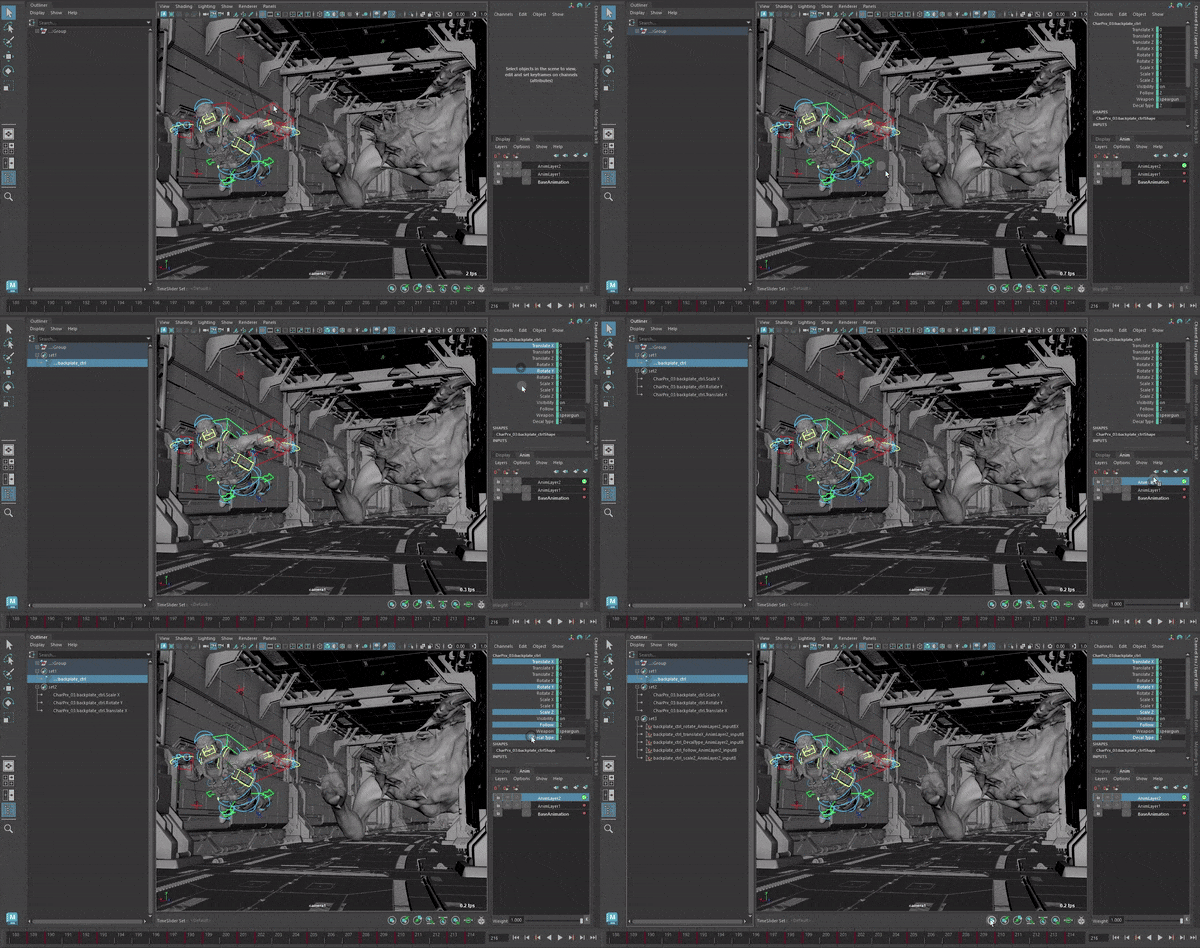
2. Add Items (Add)
When you click Add, the plugin checks your context:
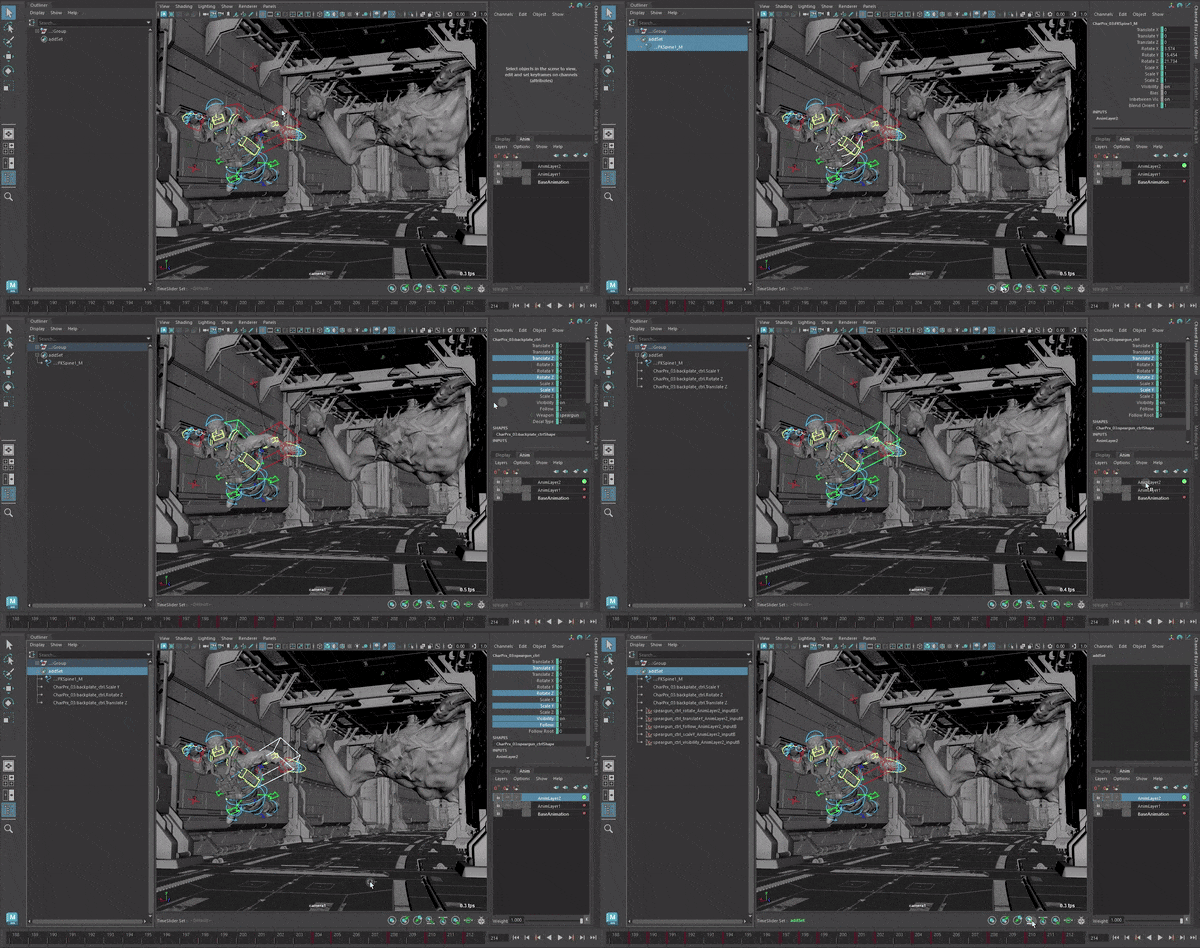
- ChannelBox Highlight: Only adds the highlighted attributes.
- AnimLayer Selected: Only adds curves belonging to the selected layers.
- Nothing Specific: Adds all animations on the object.
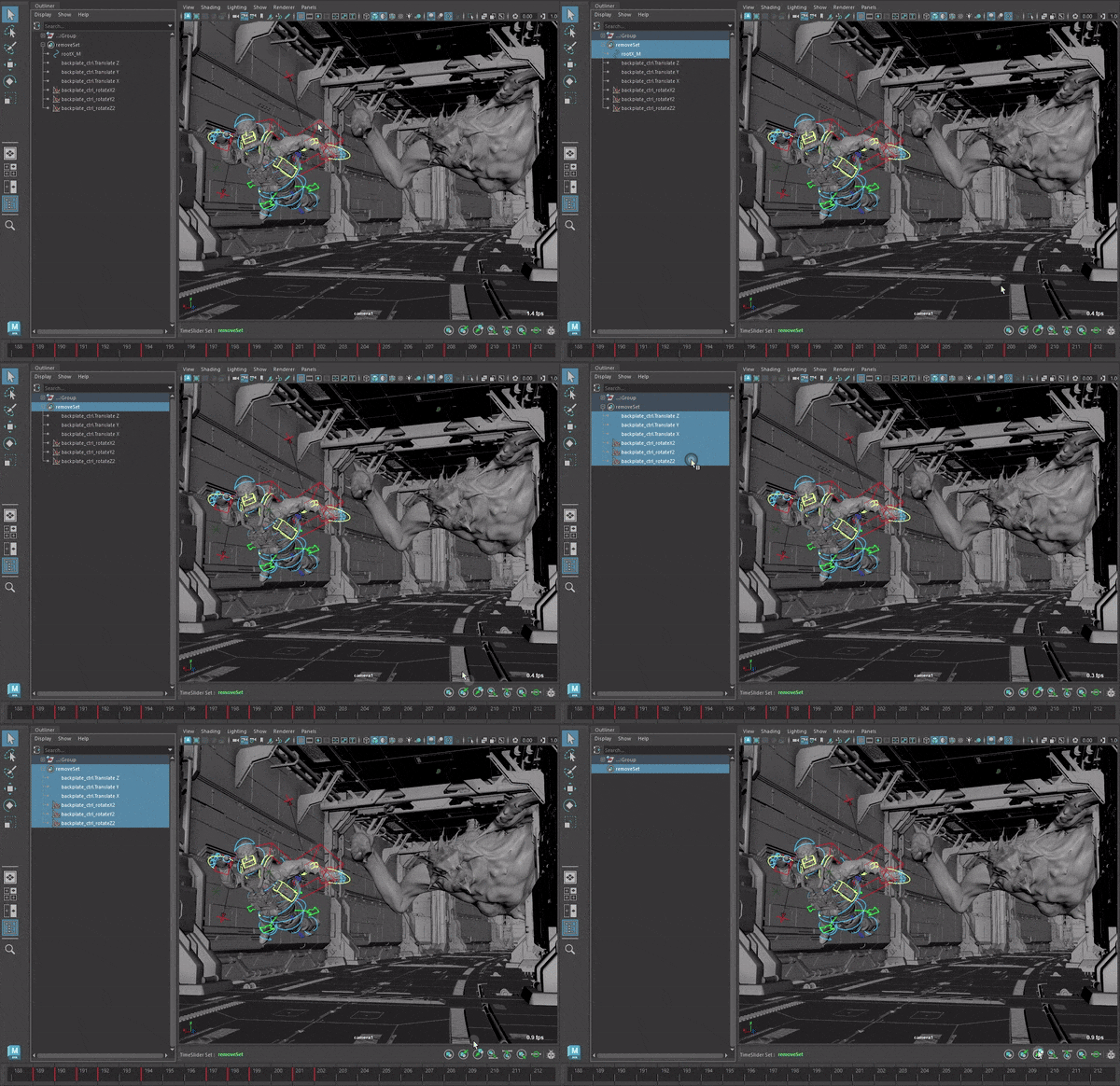
3. Remove Items (Remove)
Remove is destructive and precise. It removes exactly what you have selected in the viewport or outliner from the set.
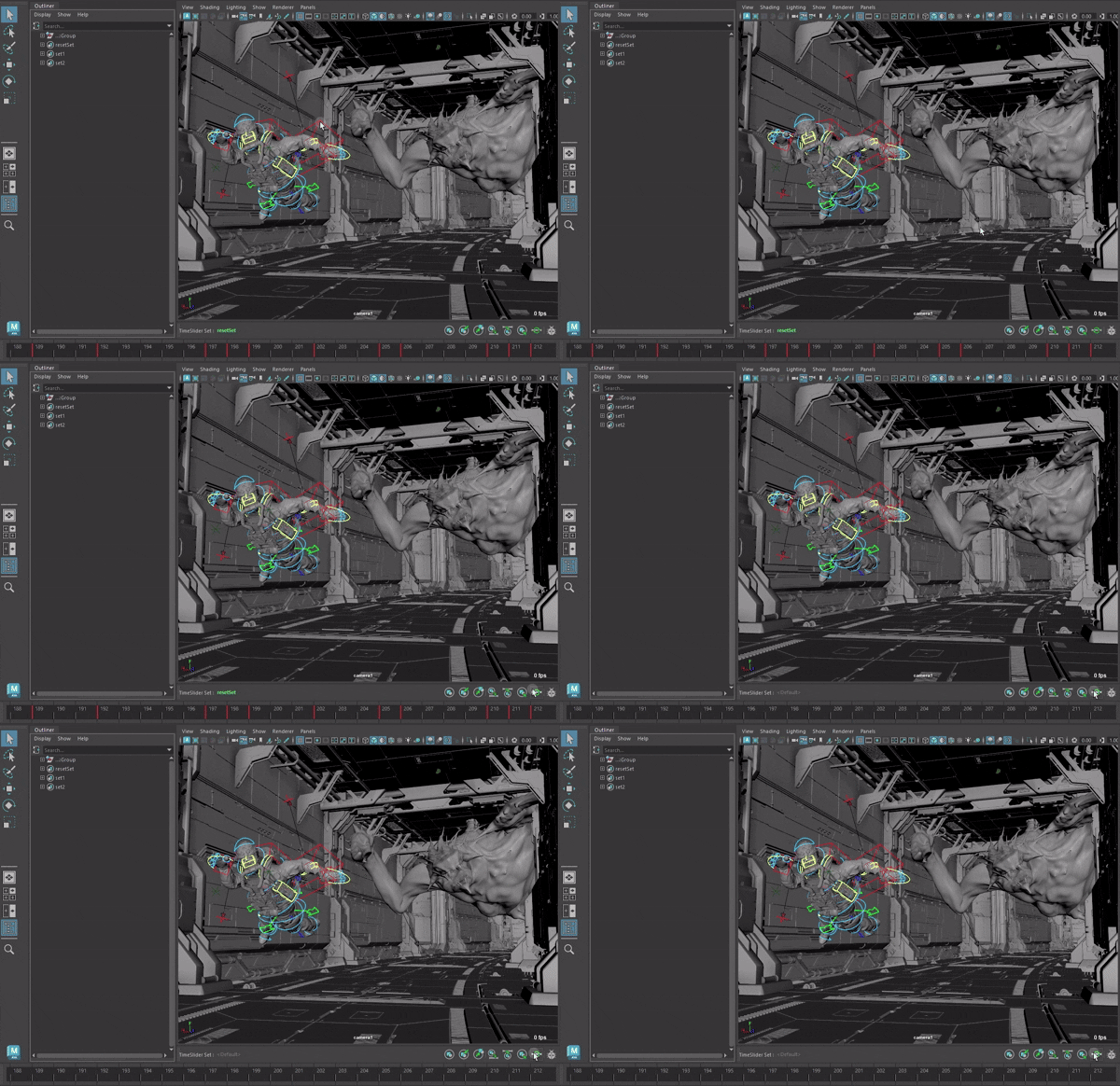
4. State Persistence
The toolbar displays the name of the Active Set in green. This persists even if you change your scene selection.
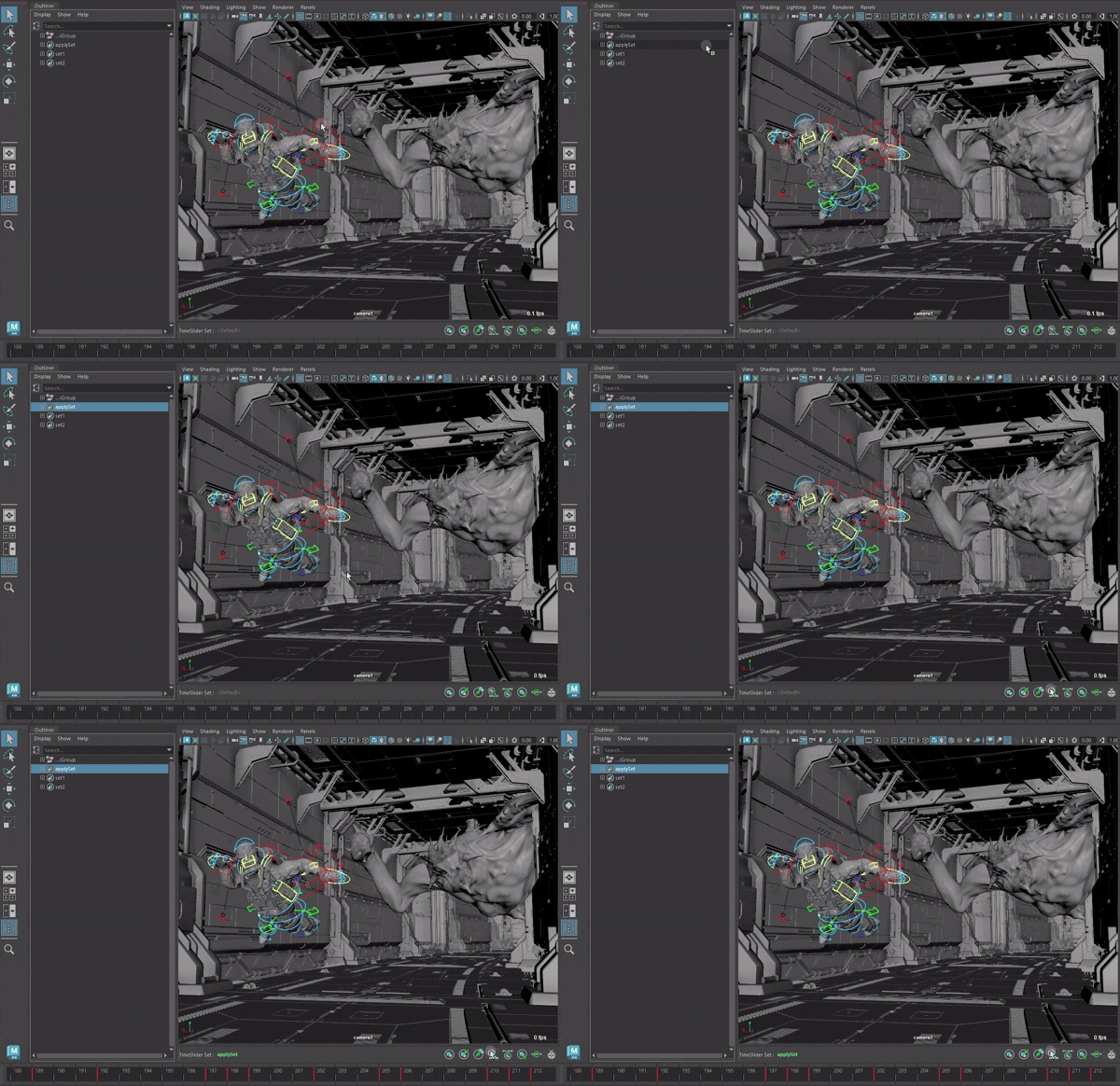
5. Apply
Forces the TimeSlider to show keys from the selected Set.
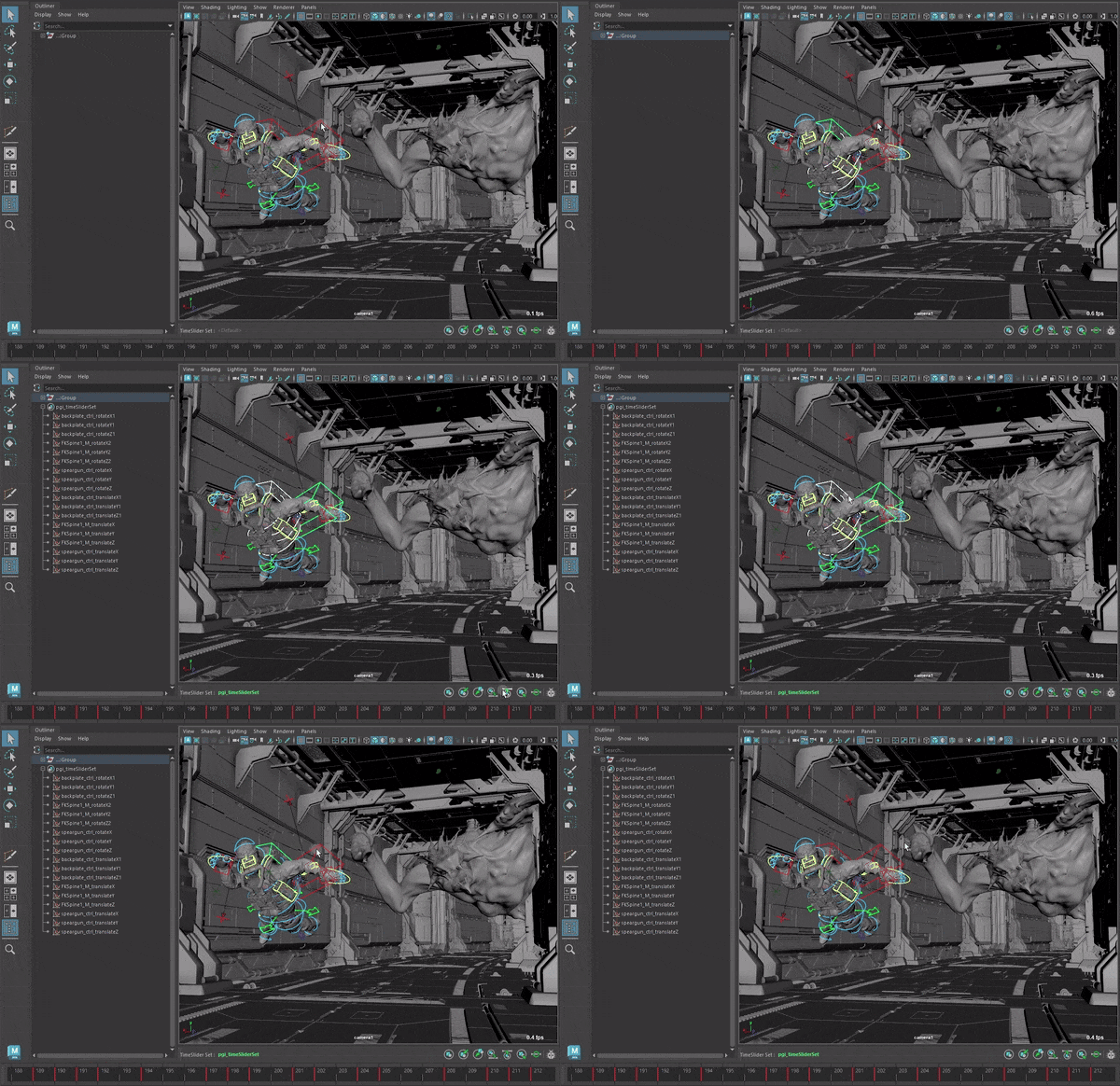
6. Capture
Takes the current TimeSlider contents and saves them as a new Set. The created Set is automatically Applied to the TimeSlider.
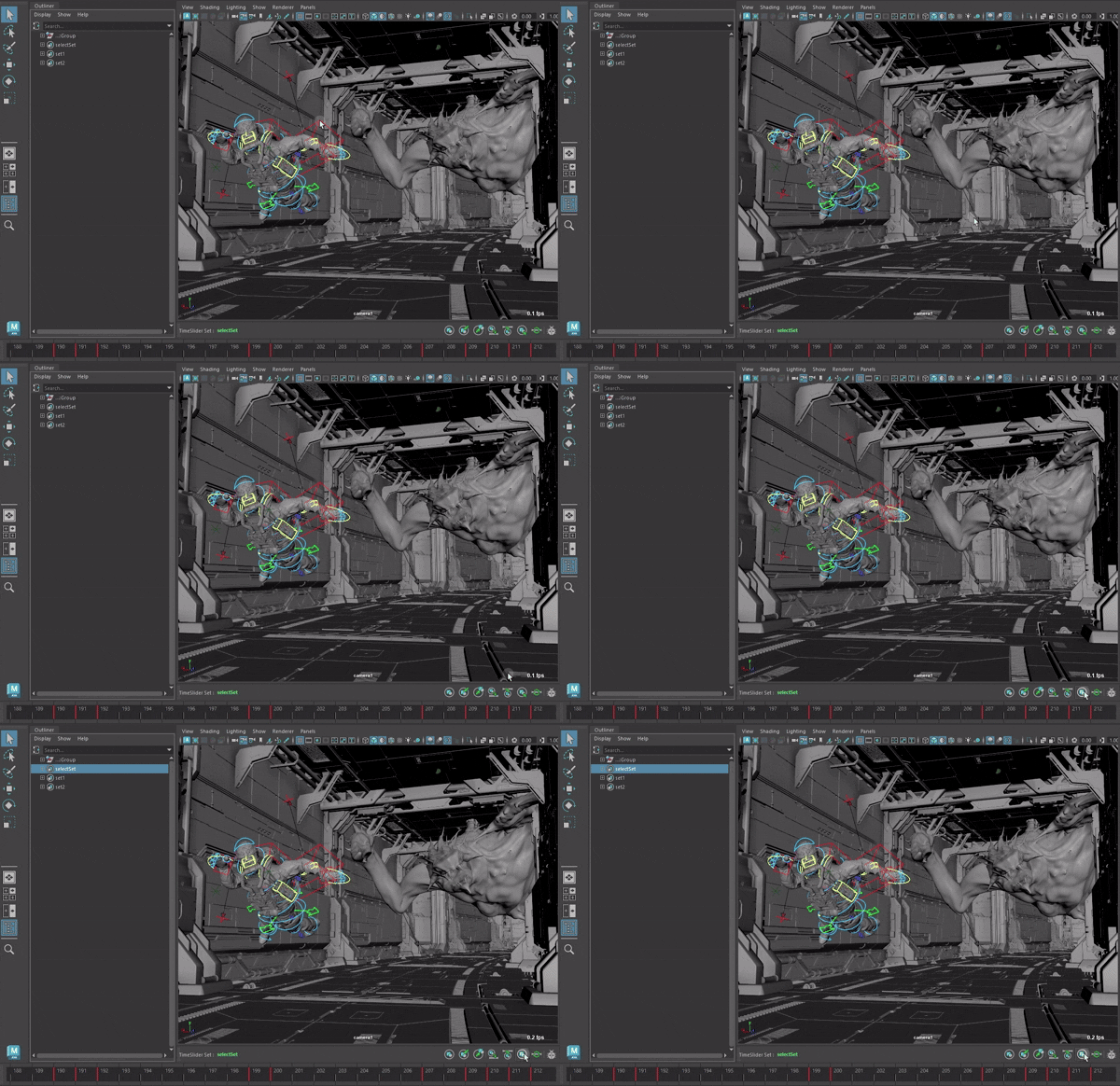
7. Select
Selects the Set currently connected to the TimeSlider.
Part 2: Smart Keyframe Navigator
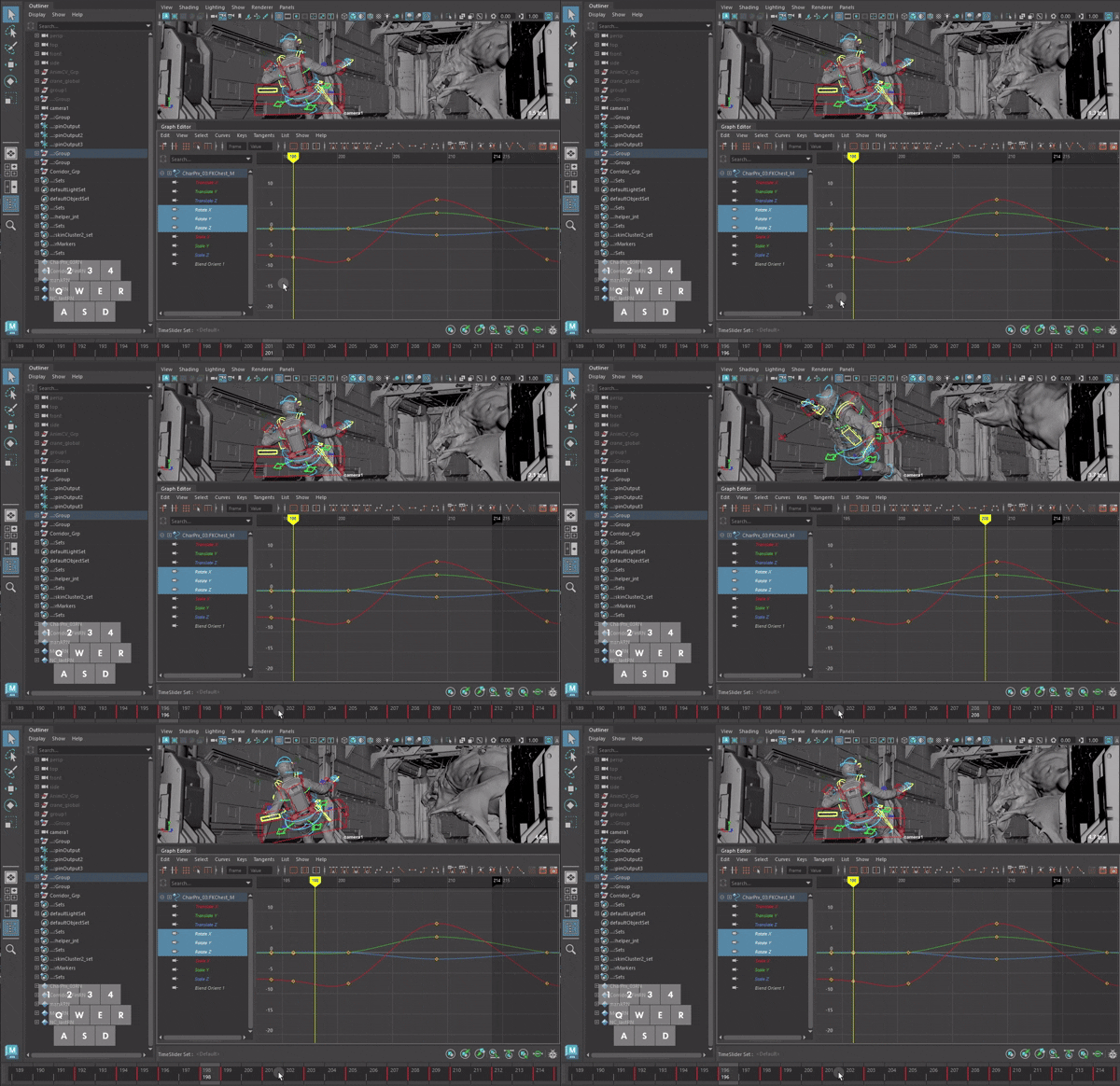
This feature makes keyframe navigation intuitive by detecting where your mouse cursor is.
How it Works
When you press the hotkey for Next Key or Prev Key:
-
Mouse Over TimeSlider
- Navigates keys based on the TimeSlider content.
- Standard Maya behavior.
-
Mouse Over Graph Editor
- Navigates keys based on visible curves in the Graph Editor.
- Ignores keys that are not visible (filtered out).
-
Mouse in Viewport (or elsewhere)
- It remembers your last active context (“Sticky” behavior).
- If you last used the Graph Editor, it keeps navigating in the Graph Editor logic.
- If you last used the TimeSlider, it uses the TimeSlider logic.
Fallback Logic
If you are in “Graph Editor Mode” but there are no keys to move to (or no curves visible), it automatically falls back to the standard TimeSlider navigation. You never get stuck!